Vinculum Release Notes
Version 9.3.182
18th March, 2026
Vin OMS & WMS
Order Management:
Change Requests/ Enhancements/ Improvements:
View Detailed Activity Log for Transhipment Orders
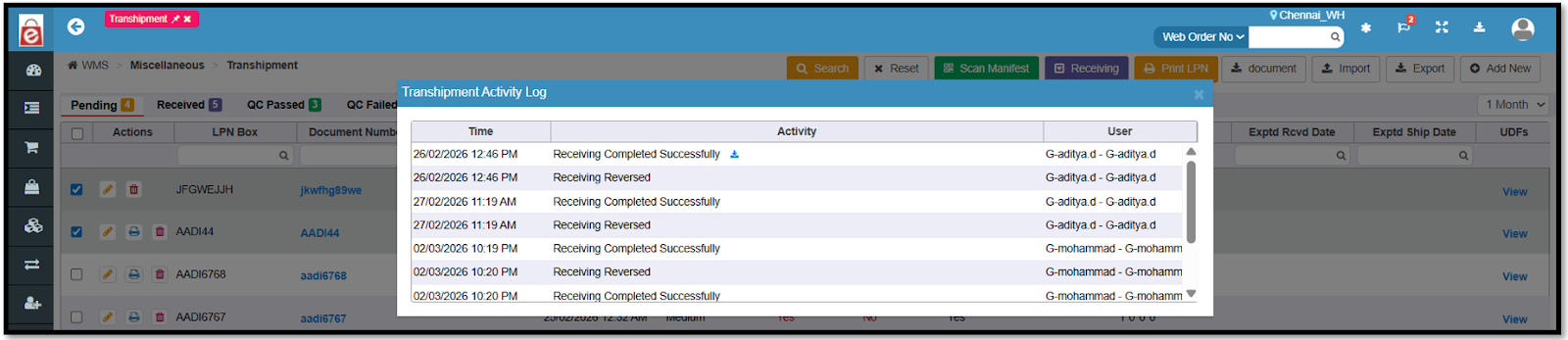
Introduced a dedicated Activity Logs view for transhipment orders, accessible via the hyperlink on the screen.
Enabled activity log capture for all key events on transhipment orders (creation, receiving completion, QC passed/failed, manifest, and shipment-related events).
Activity logs are sorted in ascending order so users can follow the exact sequence of actions performed in order.
Navigation: WMS >> Miscellaneous >> Transhipment
New Security Control: Configurable Inactivity Policy for User Accounts
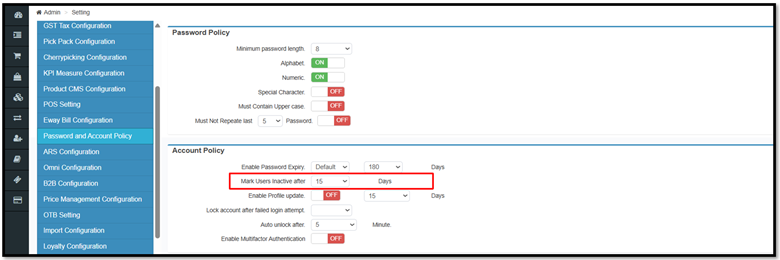
Introduced a configurable “Mark Users Inactive after” setting in the User Policy screen to define the inactivity threshold in days for the users.
The system checks all active users’ last login date against the configured threshold and marks qualifying users as Inactive. Users marked Inactive by the system can no longer log in until an admin manually reactivates them.
Added an audit trail that logs date, time, and reason for auto‑inactivation and additional user edit logs are available in the User Edit Logs report with full user details and update details.
Navigation: Admin >> Setting >> Password and Account Policy
Admin >> User Audit Logs >> User Access Logs >> User Edit Logs
Addition of Return Transhipment Type in Transhipment Module
Added a new return transhipment type in the Transhipment module to create and differentiate between transhipment orders and returns.
Support for creating return transhipment with faster identification of transhipments by enabling users to filter records from Order or return
Improved operational visibility for warehouse and operations teams by clearly separating return from orders.
Navigation: WMS >> Miscellaneous >> Transhipment

Warehouse Management:
Change Requests/ Enhancements/ Improvements:
SKU Label Printing for Inbound QC
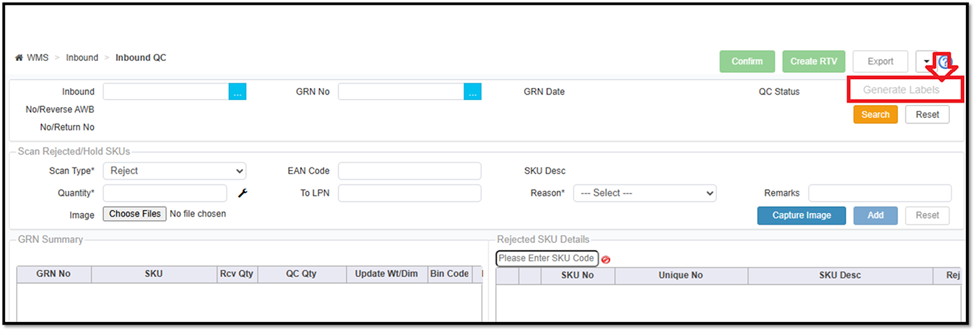
A new enhancement has been introduced in the Inbound QC process to allow users to print labels directly from the QC screen.
Users can now generate SKU labels during the Inbound QC process, similar to the existing functionality available during inbound.
A new dropdown option has been added on the Inbound QC screen to generate labels.
On selecting this option, a label print popup will open, similar to the inbound label printing screen.
A new “Scan Type” filter has been added in the popup with the following options:
Passed
Hold
Rejected
This is a generic enhancement and will be available wherever the Inbound QC process is used.
Navigation: WMS >> Inbound >> Inbound QC
Request to add a validation on the Material Recv Date of the Inbound screen
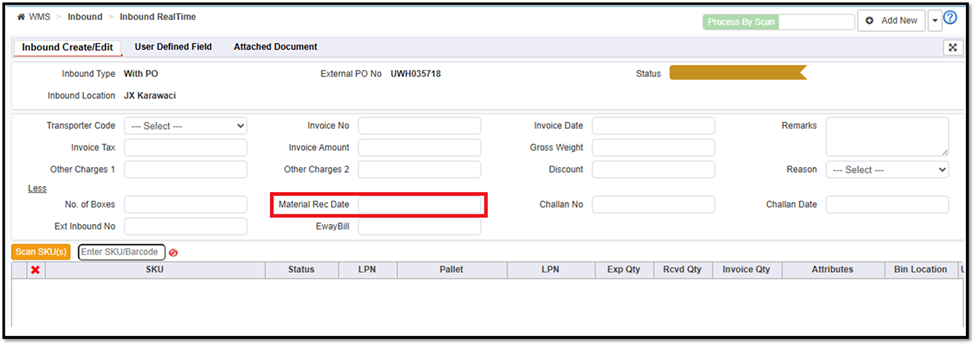
A validation has been introduced in the Inbound screen and Inbound Create API to prevent users from entering a future date in the Material Received Date field.
Users will no longer be able to select a future date for the Material Received Date on the inbound screen.
If a future date is passed through the Inbound Create API, the system will return an error response indicating that the entered date is invalid.
The validation ensures that the Material Received Date cannot be greater than the GRN date.
This change will be applied to the Inbound Real-Time process for all inbound types, except for Bulk RTO / Delivered Return.
This enhancement ensures better data accuracy and consistency in inbound transactions.
Navigation: Wms >> Inbound >> Inbound Real Time
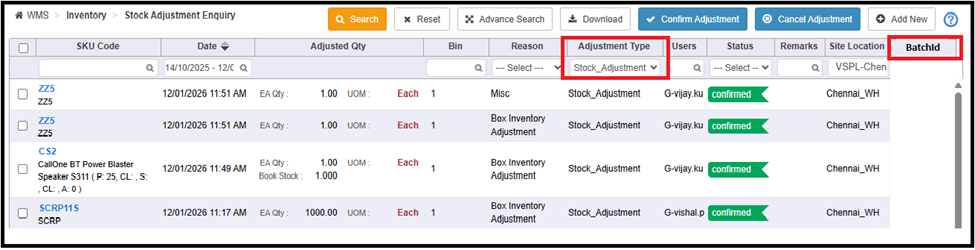
Unique Batch Reference ID should be generated for the Inventory Adjustments for ERP
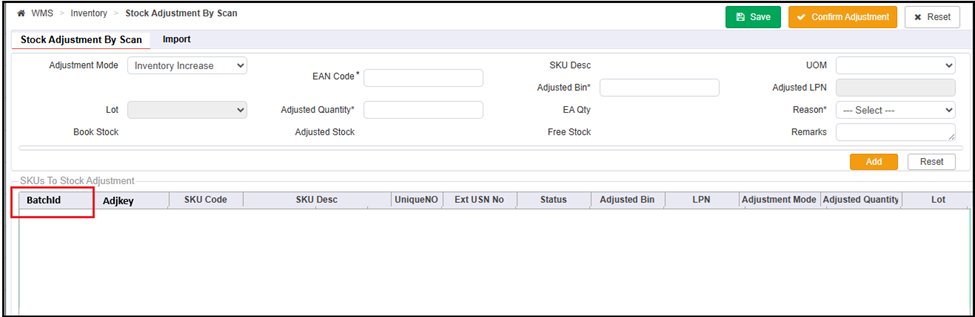
A unique Batch ID will now be generated for every stock adjustment transaction.
All SKUs adjusted within the same transaction will be associated with the same Batch ID, allowing users to easily track and group related adjustments.
A new line-level field “Batch ID” has been added to the Stock Adjustment grid.
The Batch ID will be generated when the user scans the first SKU, adds it to the grid, and clicks Save.
The same Batch ID will be applied to all subsequent SKUs added in the same screen session, as long as the session remains active.
The Stock Adjustment Enquiry screen will also display the Batch ID column. This column will be visible only when the adjustment type is Stock_Adjustment and Other.
During import, a single Batch ID will be generated and assigned to all lines included in the import file.
This is handled in both the screen import and the common import template.
Navigation: WMS >> Inventory >> Manage Stock Adjustment
FIFO-Based Picklist Sorting in WMS Mobile App
Updated the Pending Picklist display order in the WMS App to follow a FIFO sorting logic.
Pending picklists are now displayed based on ascending order of creation date and time.
The oldest picklists appear at the top of the pending picklist list.
Newest picklists appear at the bottom.
Sorting behavior is controlled through the configuration
Benefits:
Improved operational efficiency by reducing the time spent searching for pending picklists.
Prevents older picklists from being overlooked, ensuring timely order processing
Better task prioritization for warehouse pickers during high-volume operations.
Configurable control, allowing warehouses to enable or disable FIFO sorting based on operational preference.
Enhanced picking workflow with a clearer and more logical task order.
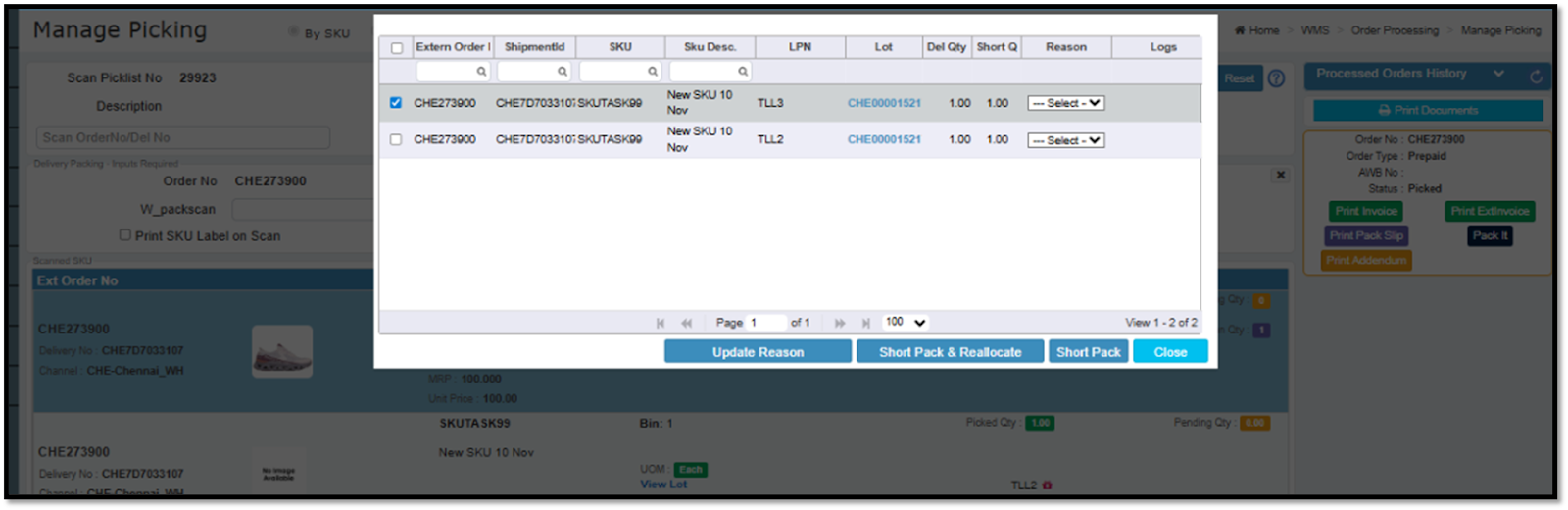
LPN Visibility on Short Pack Screen
When a user performs a Short Pack, the system will now display the LPN (License Plate Number) associated with the scanned SKU in the Short Pack pop-up screen.
The LPN field is auto-populated and non-editable to maintain data integrity.
Benefits:
Improved Traceability: Enables users to identify the exact LPN associated with short-packed quantities.
Better Operational Visibility: Warehouse users can quickly track the source container for discrepancies.
Enhanced Packing Accuracy: Provides contextual information to packing operators during exception handling.
Operational Transparency: Improves auditability and accountability in the packing process.
Navigation: WMS >> Order Processing >> Manage Picking
Video Management System for Inbound QC and Packing Process
A new capability has been introduced in WMS to capture and store videos during packing and inbound QC processes.
This feature helps warehouses maintain visual proof of items processed, supporting stricter SPF claim policies from marketplaces and improving operational traceability.
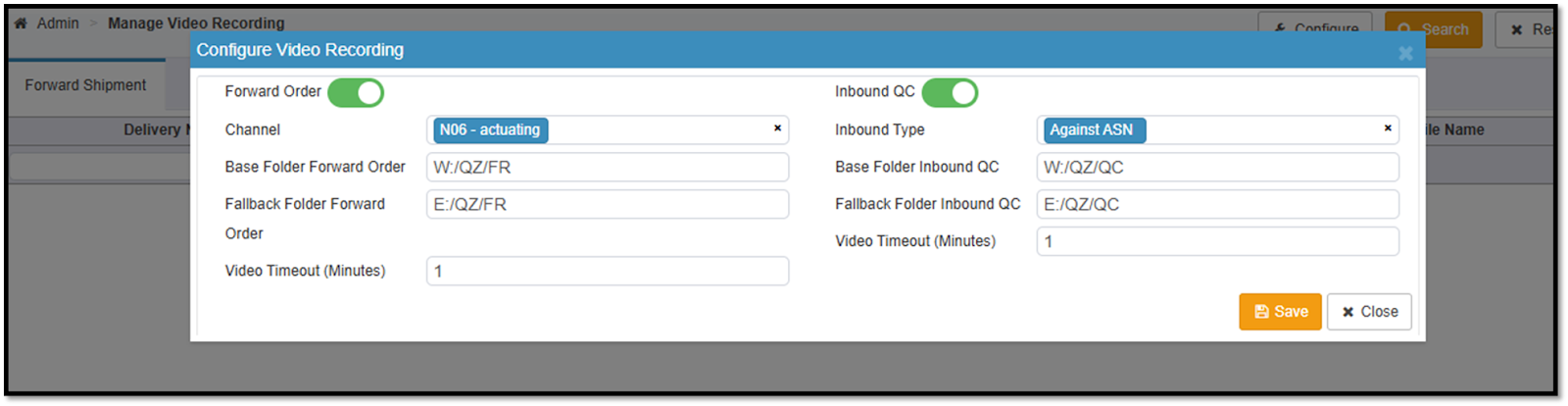
Video recording can be configured from WMS → Admin → Miscellaneous → Manage Video Recording.
Admins can enable the functionality for: Forward Order Packing and Inbound QC
Configuration supports location-wise, channel-wise, and inbound-type-based controls.
Videos are stored in NAS shared folders configured within the module.
Video Recording During Packing:
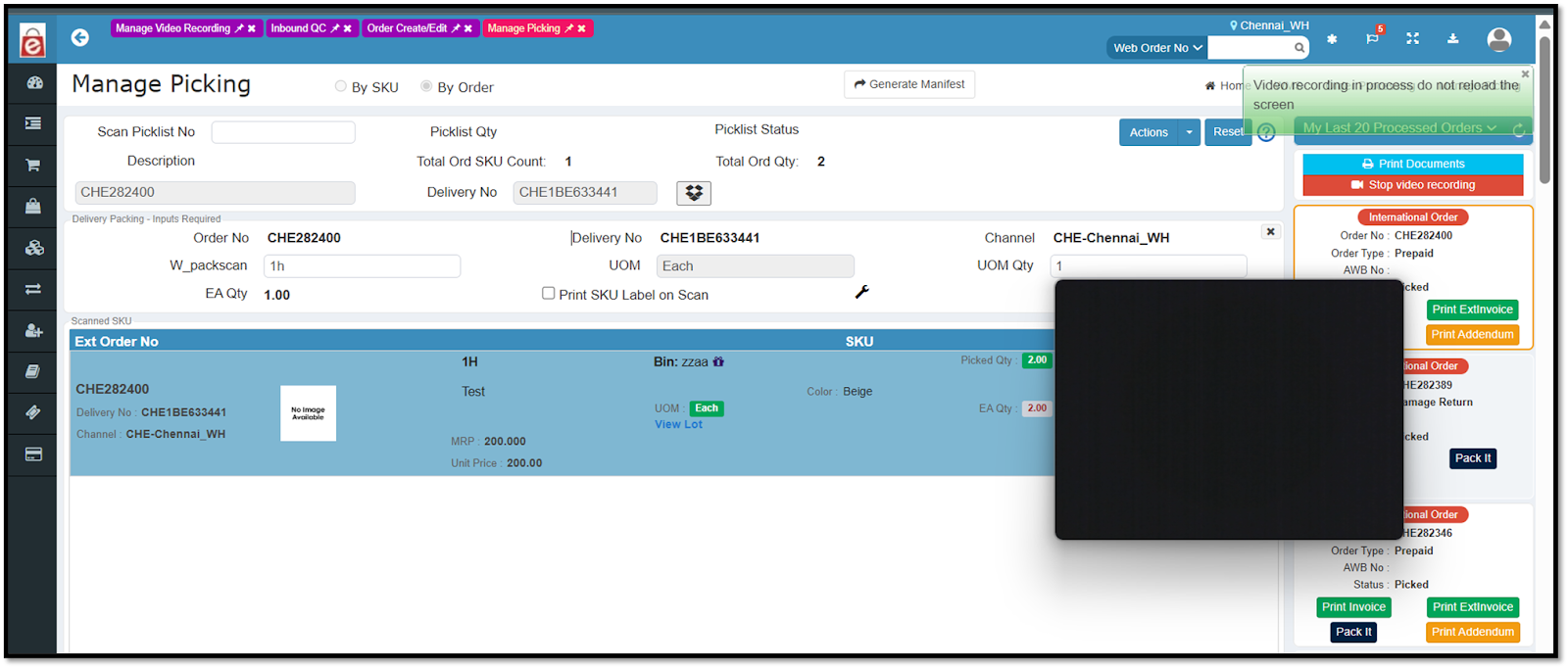
Video recording automatically starts when the first SKU of a delivery is scanned at the packing station.
Recording continues during SKU scanning, packing, invoice generation, and label printing.
Recording stops when: A new delivery is scanned, or the user manually stops recording.
Each delivery will have one dedicated video stored in the NAS storage.
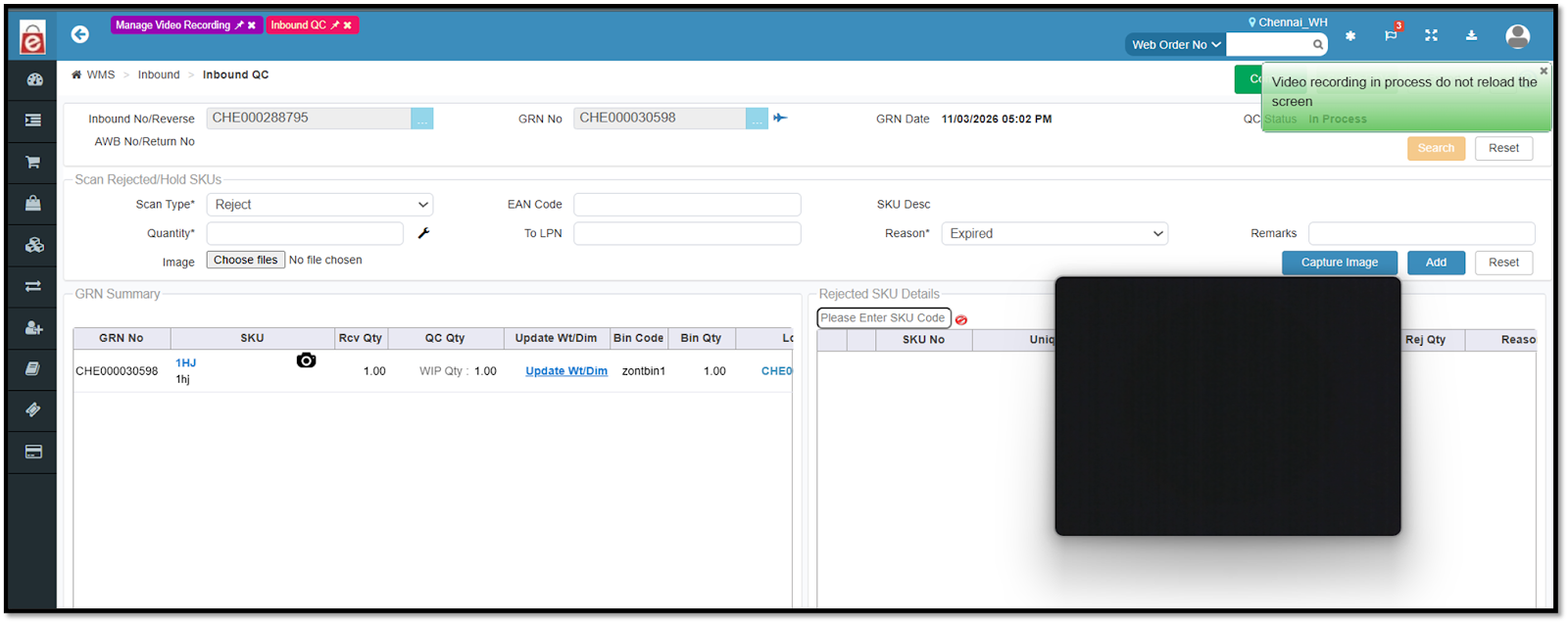
Video Recording During Inbound QC:
During QC if the configuration is enabled, video recording automatically starts when a user enters and searches for an Inbound No / Reverse AWB No / Return No in the QC screen.
Recording continues while the user scans items and performs QC checks.
Once the user clicks Confirm QC, the video is saved and uploaded to NAS storage.
Video Storage and Retrieval:
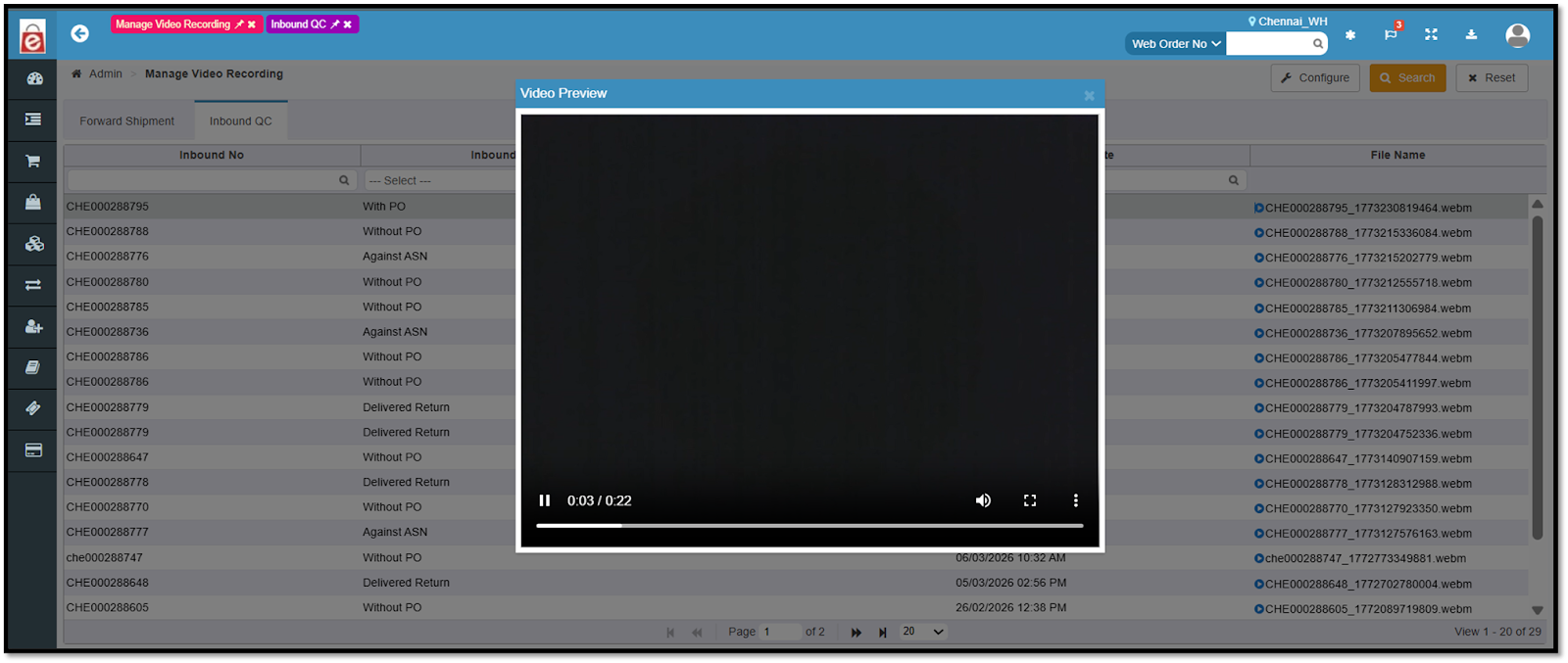
Recorded videos are automatically uploaded and stored in the configured NAS storage.
A Video Enquiry Screen allows users to: Search videos using Delivery No / Order No, Filter by Date, Channel, and AWB No
Preview videos in PIP mode
Download videos individually
Inbound QC Single-Step Process
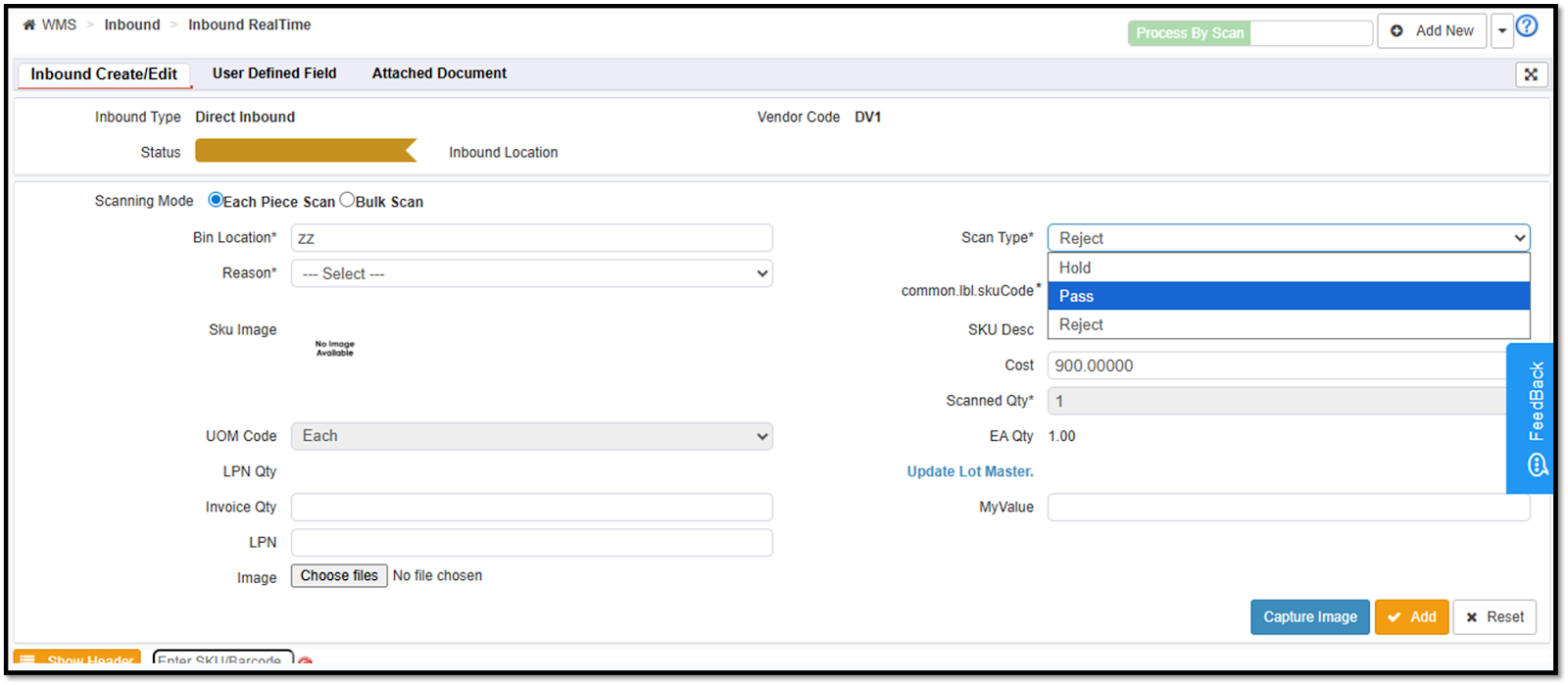
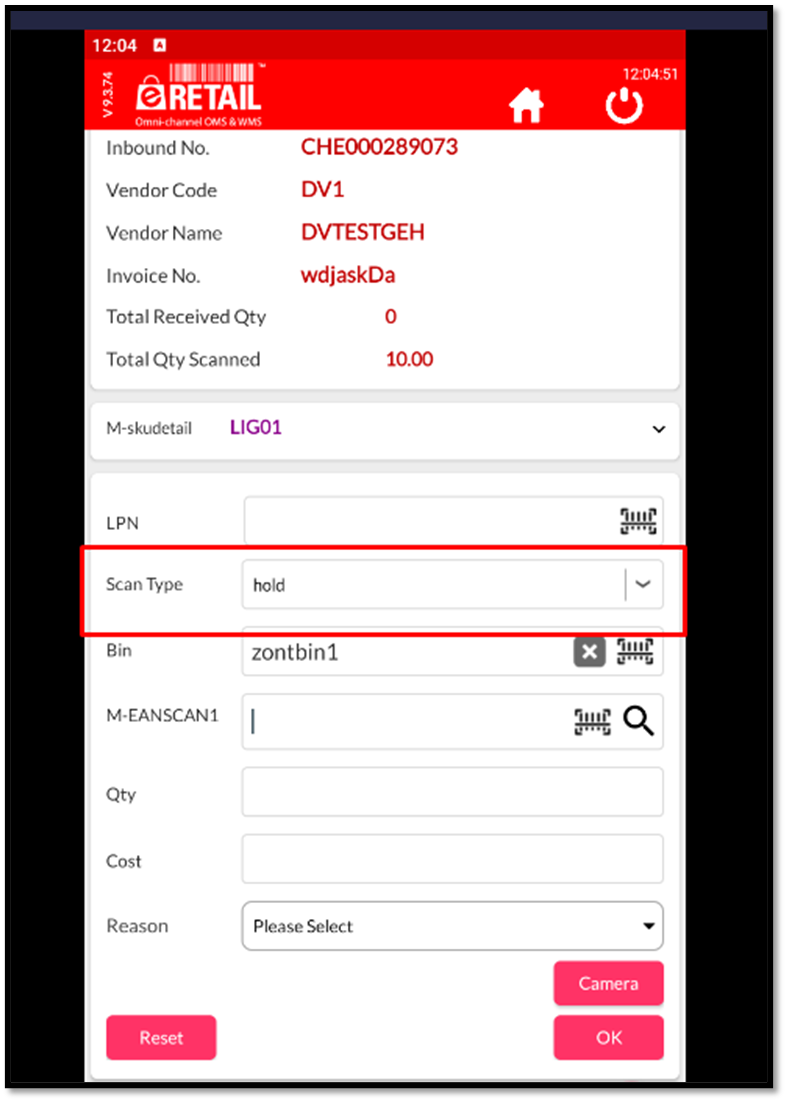
Introduced a single-step Inbound + QC process directly within the Inbound screen.
Users can now select QC Scan Type (Pass / Reject / Hold) during inbound itself.
Default QC status set to “Pass” for faster processing.
For Reject/Hold cases, users must select a QC reason (mandatory).
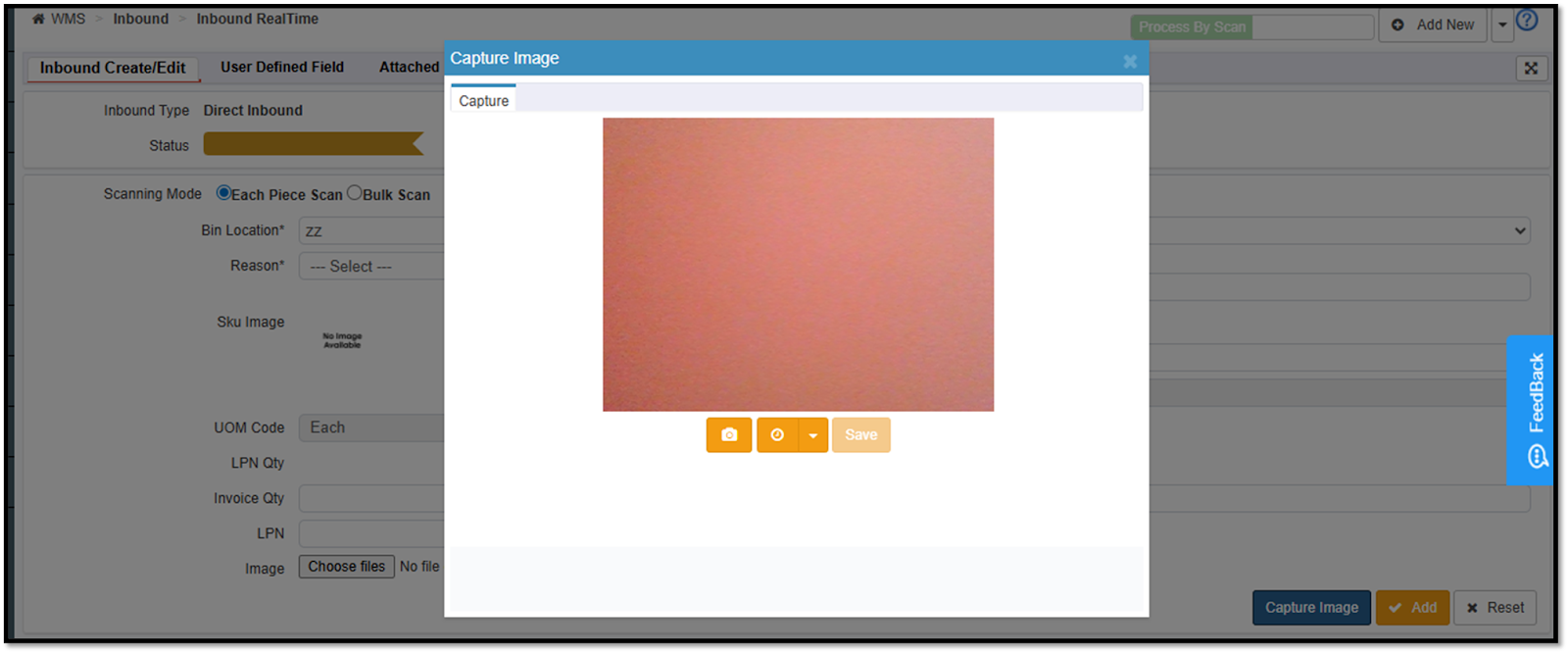
Added capability to capture/upload images during inbound for QC validation.
Introduced a remarks field to capture additional QC notes.
A new “Confirm QC” button has been added within the Inbound flow.
QC status transitions: QC in Progress → QC Confirmed directly from inbound screen.
Configuration-based enablement.
Supports all inbound types without changing existing flows.
Benefits:
Improved operational efficiency by eliminating separate QC step.
Reduced processing time during receiving and quality checks.
Better user experience with fewer screen navigations.
Enhanced traceability through image capture and remarks.
Error reduction via mandatory QC reason for rejected/hold items.
System-driven accuracy with automatic bin/zone suggestion.
Flexible configuration allows enabling/disabling as per business needs.
No disruption to existing processes when the feature is turned OFF.
Navigation: WMS >> Inbound >> Inbound Real Time
Case Pack Handling in Inbound QC
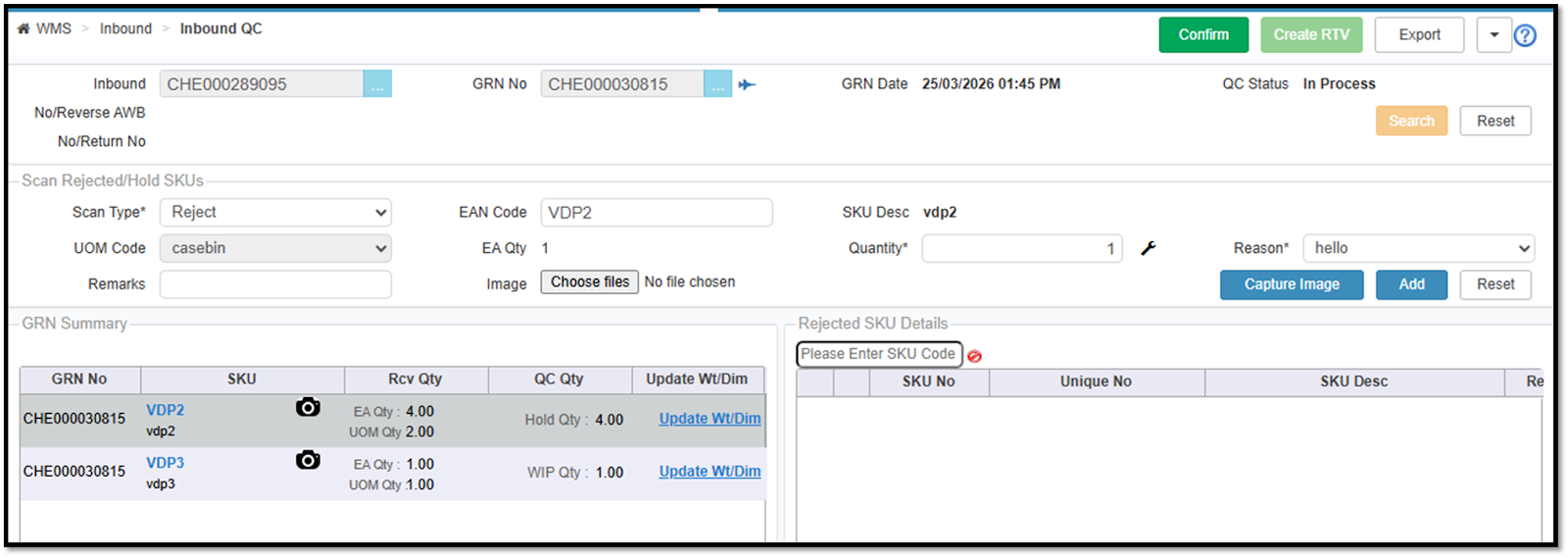
Enabled case pack (CASE UOM) handling on the Inbound QC screen (Web).
System now supports both full case and partial case QC processing.
Users can scan case pack barcodes, and the system auto-identifies SKU and UOM.
Added visibility of EA Qty (Each) and UOM Qty in QC and GRN summary.
Introduced logic to handle:
Full case rejection (entire case gets rejected)
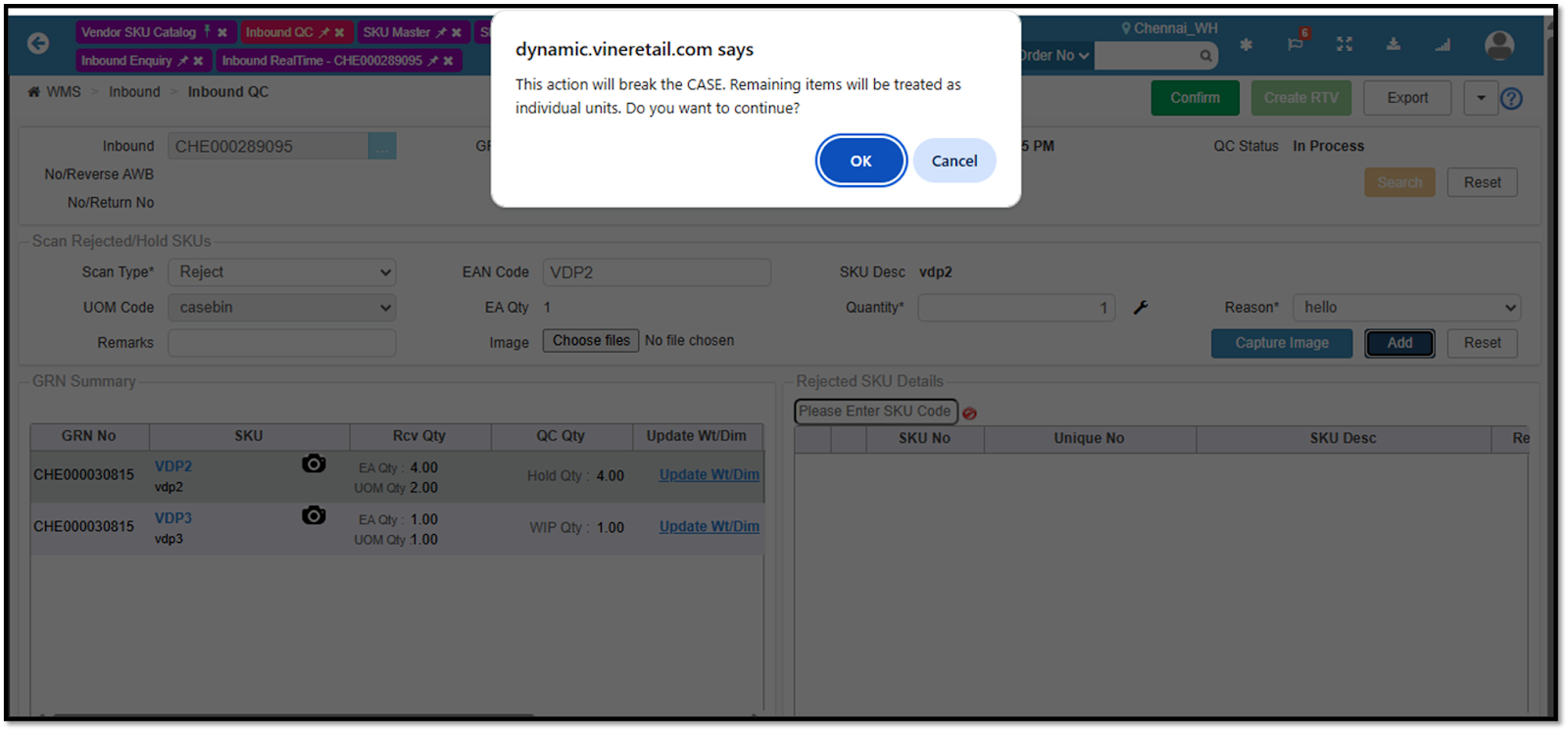
Partial case rejection (case breaks into individual units)
System prompts confirmation before breaking a case into individual units.
For SKUs with multiple UOMs (CASE + EACH):
Users can select whether rejection is from CASE or LOOSE inventory.
Config-driven behavior to control:
Case break handling
UOM-based rejection logic
Benefits:
Accurate inventory handling for case pack and loose units during QC.
Improved flexibility to manage both full and partial case rejections.
Reduced manual calculations with auto conversion between CASE and EACH.
Better control and validation through configuration-based logic.
Enhanced operational efficiency in QC processing.
Improved data visibility with separate EA and UOM quantity tracking.
Navigation: WMS >> Inbound >> Inbound QC
Standard APIs
Change Requests/ Enhancements/ Improvements:
Inbound Webhook Other Charges
The Inbound Detail API (V1 and V3) has been enhanced to include Other Charges information in the standard API response.
Previously, the API response did not include additional cost components entered during the Inbound/GRN process, limiting external systems' ability to capture the complete financial details of inbound transactions.
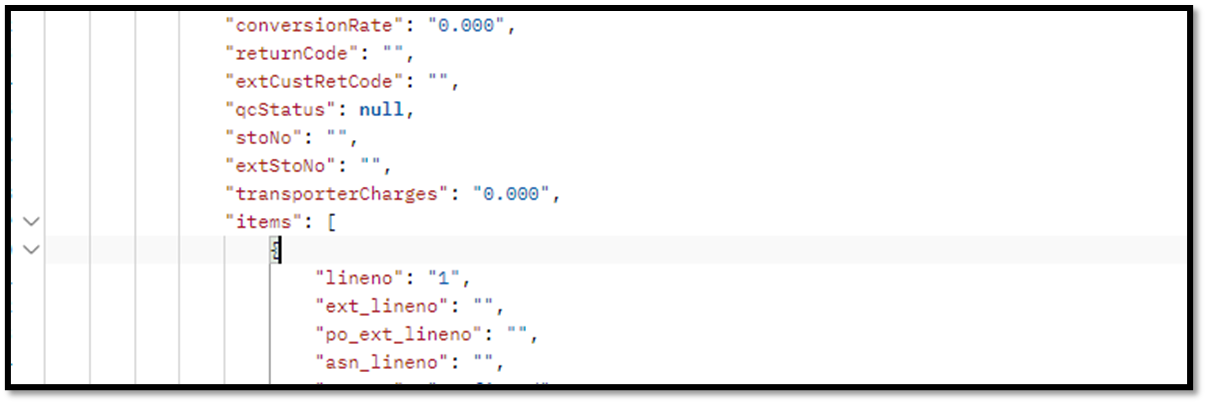
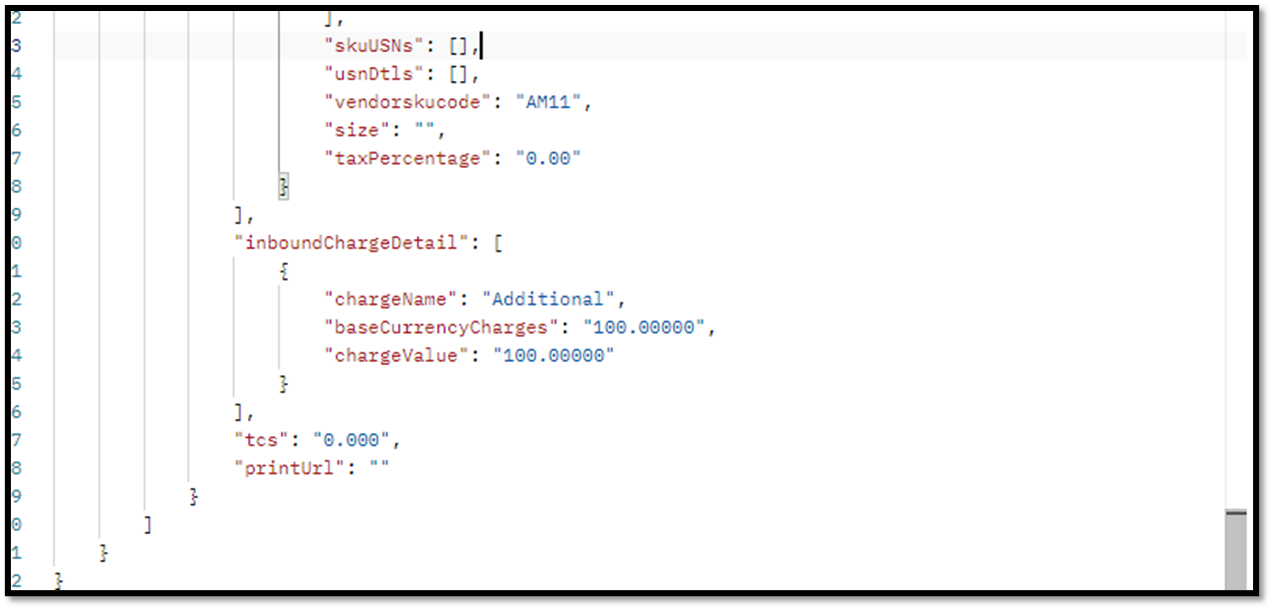
Other Charges will now be available at both the header and line levels in the API response
The parameters “tcs”, “transporterCharges”, and absolute charges are introduced at the Header level.
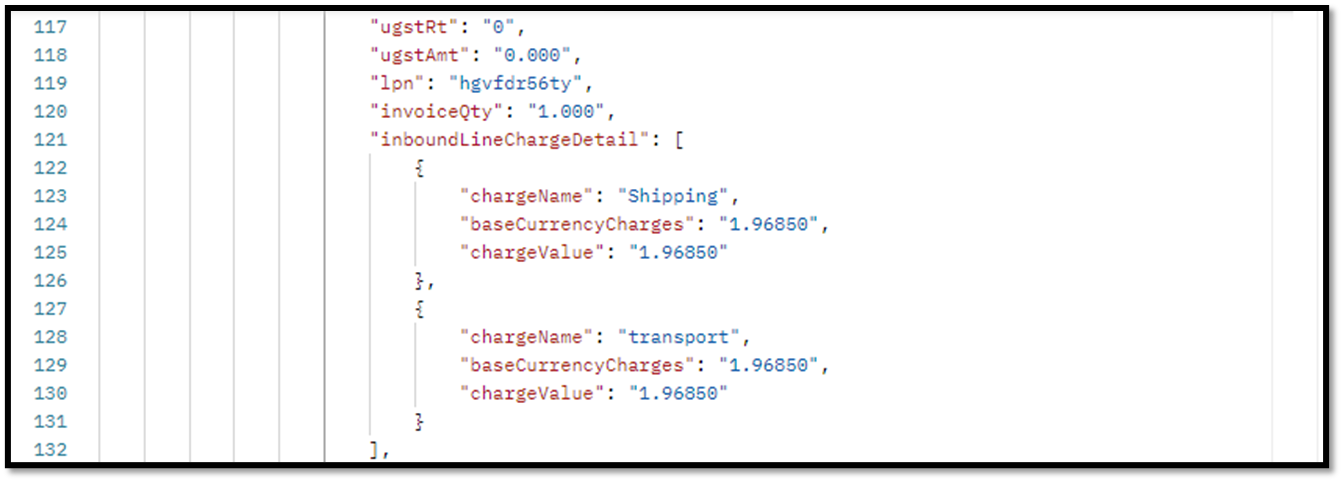
A new array “inboundLineChargeDetail” in the response to provide line-level charge information associated with each inbound SKU.
The array includes chargeName, baseCurrencyCharges & chargeValue.
Benefits:
Complete Financial Visibility: Enables OMS and other integrated systems to capture all inbound cost components.
Improved System Integration: Ensures accurate data exchange between WMS and OMS platforms.
Better Cost Tracking: Supports tracking of additional charges such as transporter charges and taxes.
Enhanced Financial Reconciliation: Improves reporting accuracy for inbound transactions.
Scalable API Design: Supports header and line-level charge details for future extensibility.
End Point - /RestWS/api/eretail/v1/inbound/detail
/RestWS/api/eretail/v3/inbound/detail